
Viewing Employee Creation and Updates in Bulk User Logs
Learn how to use Bulk User Logs to track Public API activity, including employee creation and updates, within PerformYard
Overview
Previously, employees created or updated via the Public API had limited visibility in PerformYard. Admins had no high-level way to confirm that employee creation was working as expected, and technical teams had no way to identify which records failed during bulk operations.
Now, every API call that creates or updates employees is automatically logged in Bulk User Logs, complete with status, timestamps, and record-level detail.
Who Can Access Bulk User Logs
This feature is available to PerformYard admins only.
How to Access Bulk User Logs
- Navigate to Company Settings
- Select Bulk User Logs in the left side navigation
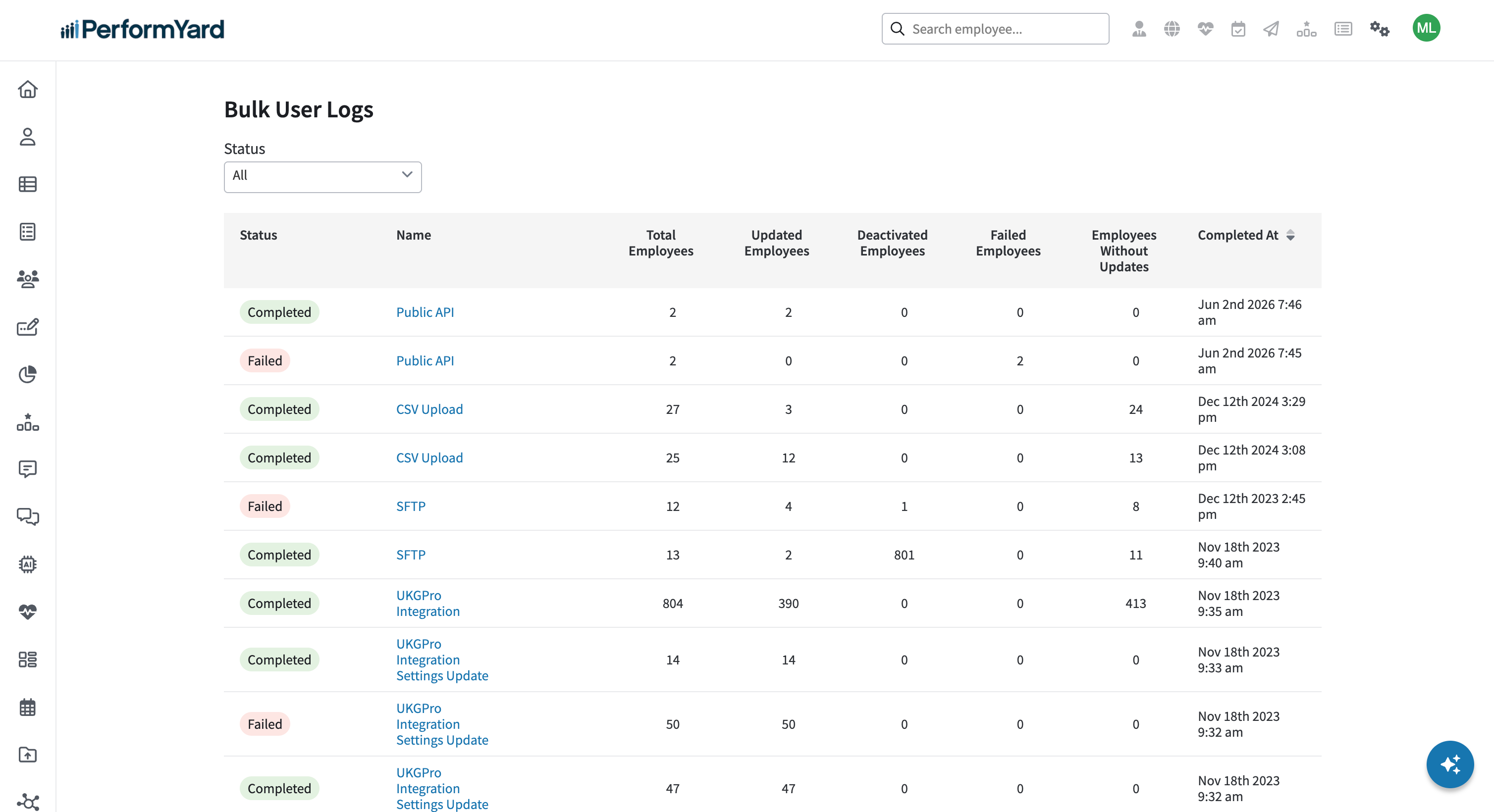
Each log entry displays:
- Status: Completed or Failed
- Name: Public API
- Date/Time: When the API request was run
- Employee counts: Total, Updated, Deactivated, Failed, and No Updates
What Gets Logged

Creating Employees
Endpoint: POST https://api.talent.performyard.com/v1/employees
When one or more employees are created via the Public API, a new entry appears in Bulk User Logs.
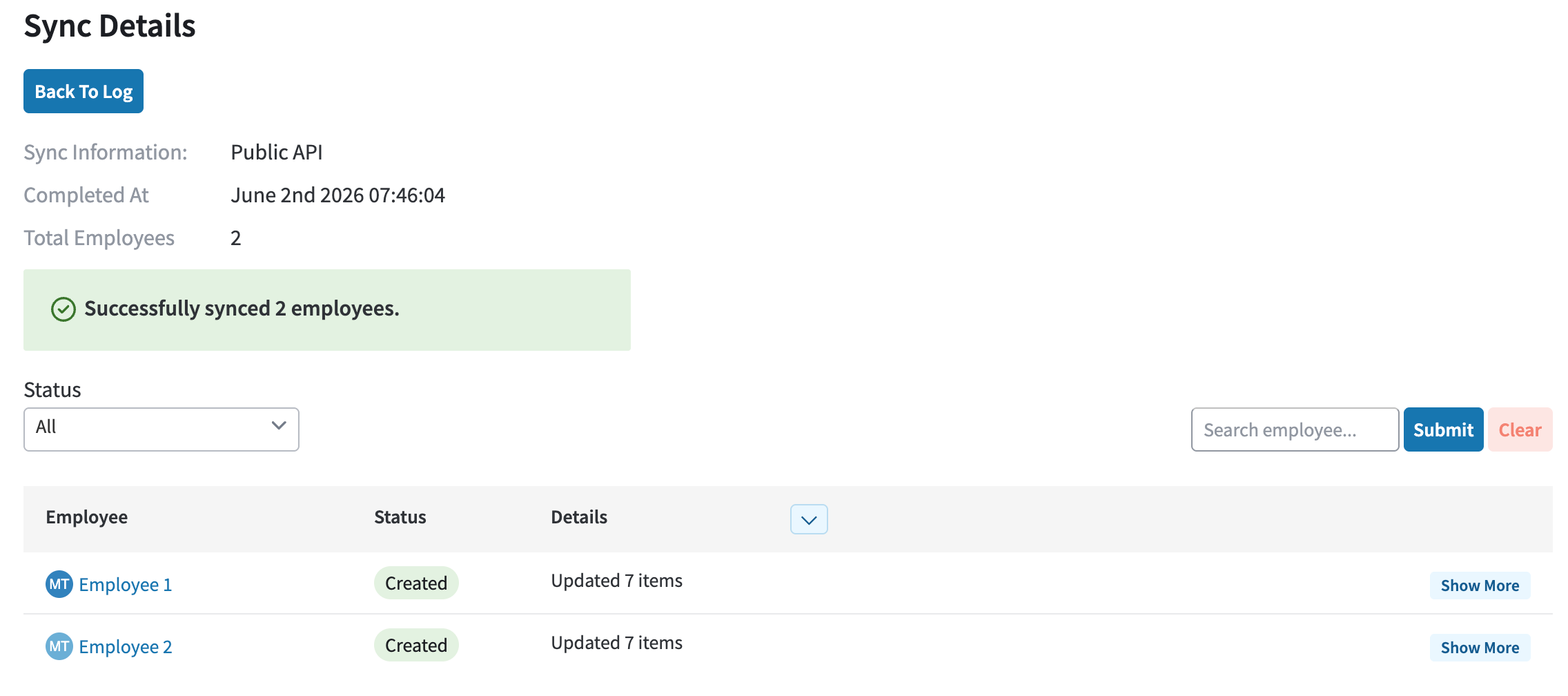
If the API request was successful: The entry shows a status of Completed with a count of successfully created employees. Clicking into the log shows each created employee along with the attributes that were set during creation.
If the API request was unsuccessful: The entry shows a status of Failed with a count of employees that failed. Clicking into the log shows which records failed and displays the same error message returned by the API.
Updating a Single Employee
Endpoint: PATCH https://api.talent.performyard.com/v1/employees/{id}
If the API request was successful: The entry shows a status of Completed. Clicking into the log shows the updated employee with a status of Synced and the specific attributes that were changed.
- If the employee had no changes, their status appears as No Updates
- If the employee was reactivated or deactivated, their status appears as Reactivated or Deactivated
If the API request was unsuccessful: The entry shows a status of Failed. Clicking into the log shows the employee record that caused the failure along with the API error message.
Updating Multiple Employees
Endpoint: PATCH https://api.talent.performyard.com/v1/employees
If the API request was successful: The entry shows a status of Completed with counts reflecting all updated, deactivated, and no-change employees. Clicking into the log shows each employee with their respective status (Synced, No Updates, Reactivated, or Deactivated) and the attributes that were changed.
If the API request was unsuccessful: The entry shows a status of Failed with a count of all employees passed in. Clicking into the log shows the records that caused the failure along with the API error message.
Updated about 2 months ago